Join a meeting
Matrx provides multiple ways for you to join meetings effortlessly, through meeting links, buttons, meeting ID and password and the shortcut.
Join a meeting from desktop (Windows and macOS)
Join with the Meeting Link
1. When receiving a meeting link shared by other participants within Matrx, click the meeting link and you'll join the meeting automatically.
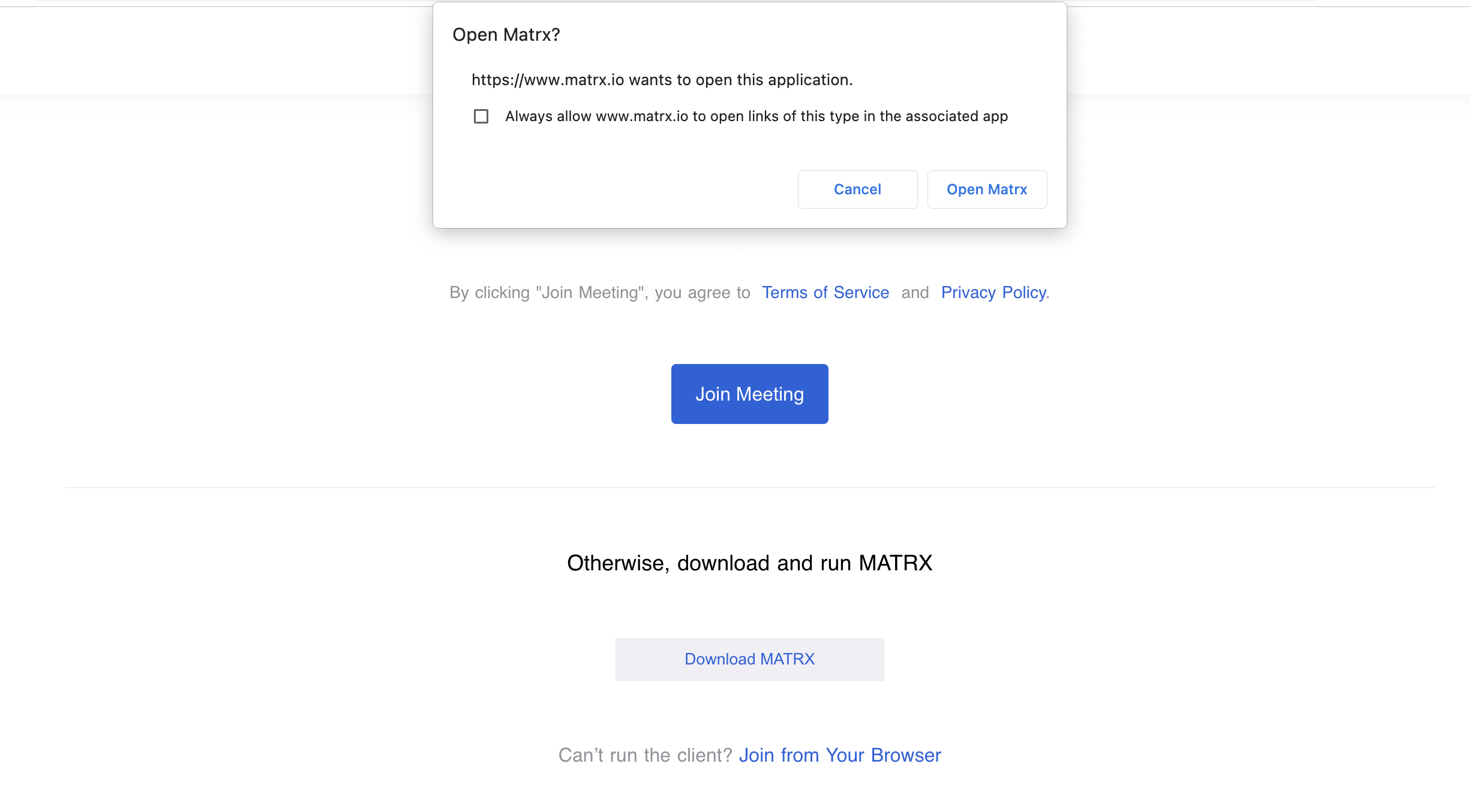
- When receiving a meeting link outside Matrx, click the meeting link and it will be opened through your browser. If you've installed Matrx, click the Open Matrx button from the pop-up window and you'll join the meeting automatically. If you have logged in, you will directly join the meeting using your name. If you have not logged in, you will join anonymously.
Join with the Meeting ID and Password
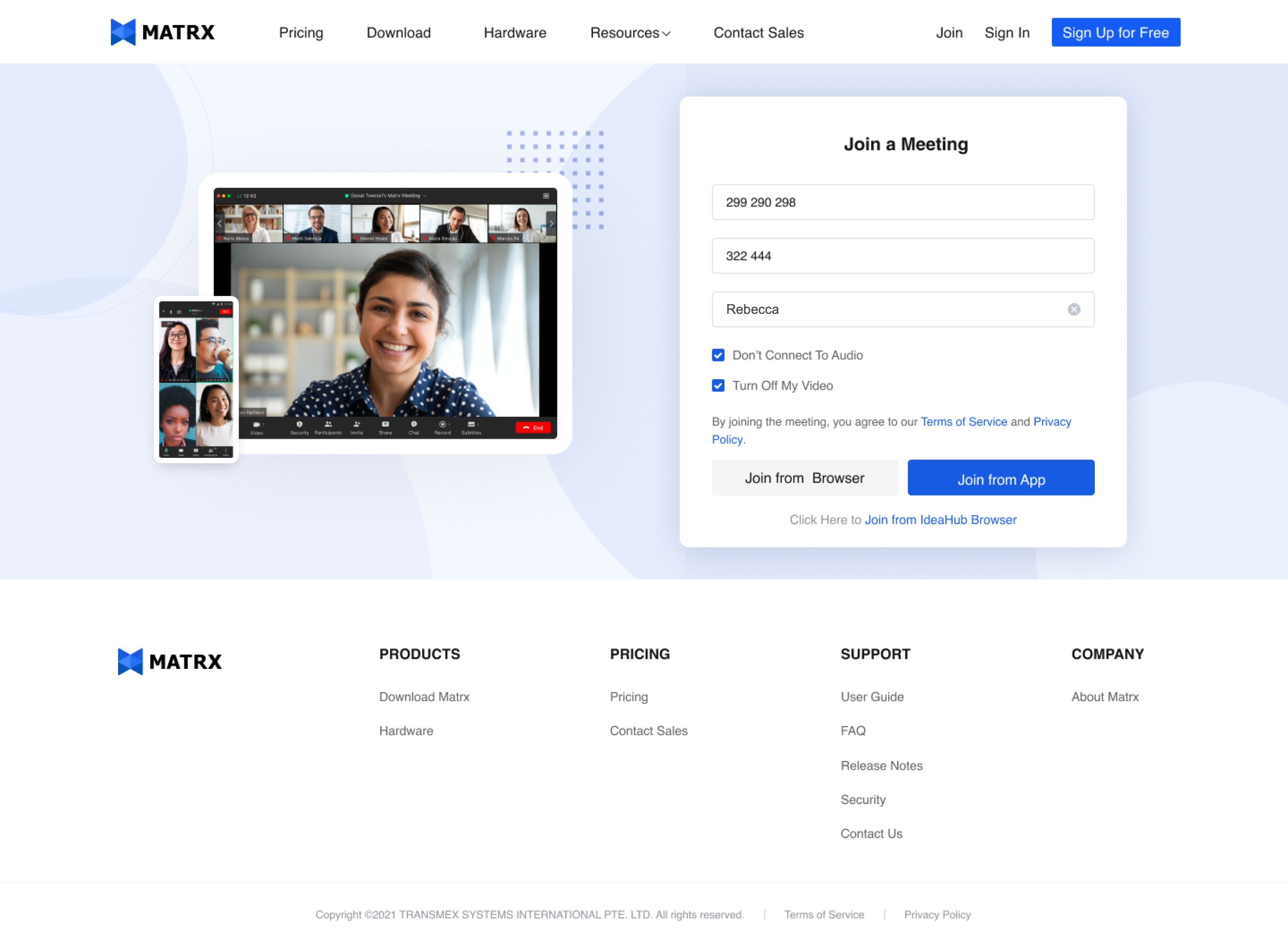
- If you have not logged in on Matrx or even don't have a Matrx account yet, you can also join a meeting directly with the meeting ID and password. By clicking the Join a Meeting button, enter the meeting ID and password and your nickname, and you can join the meeting directly.
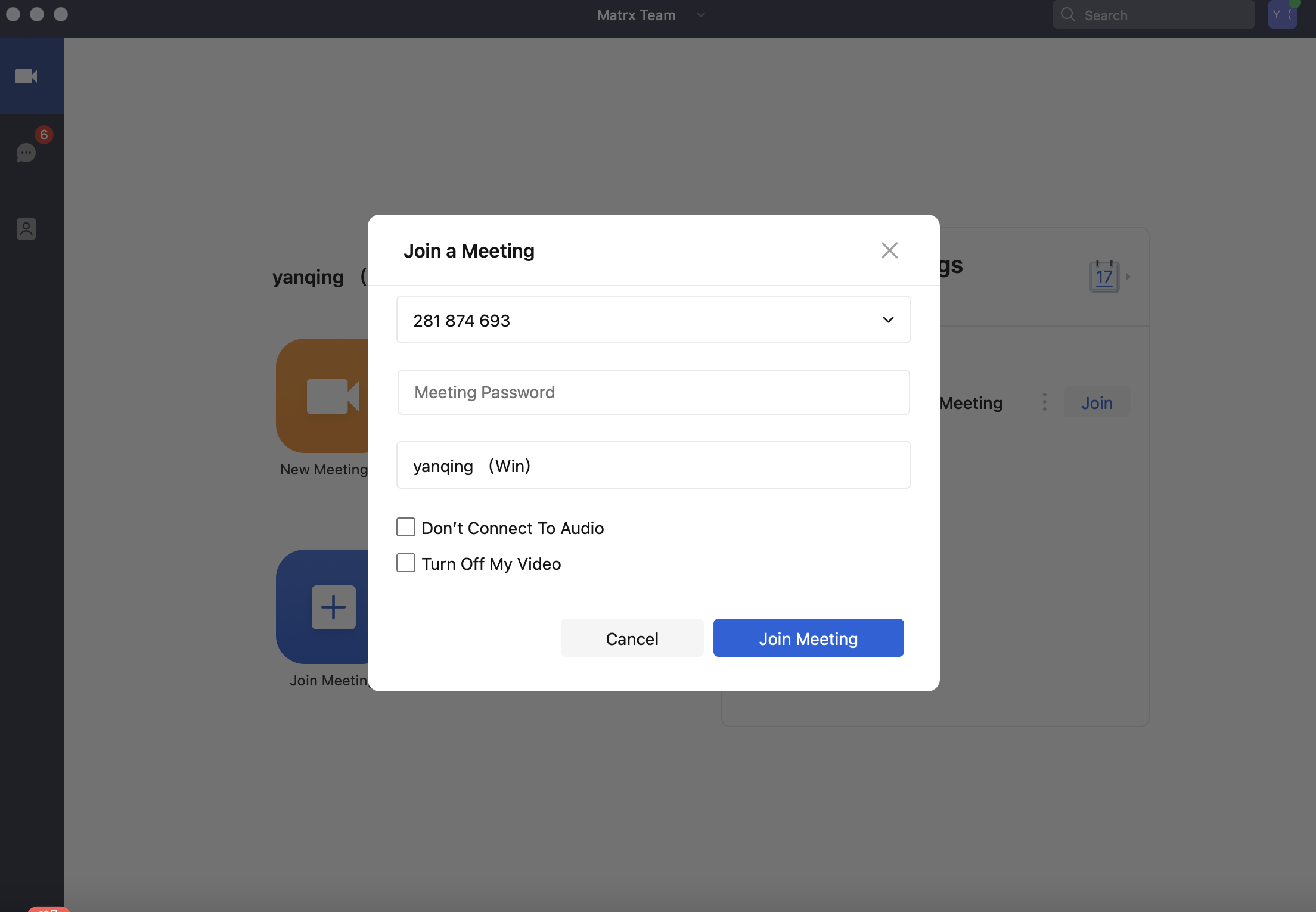
- If you have logged in on Matrx and only the meeting ID and password are shared with you, you can also click on the Join Meeting button, enter the meeting ID and password, choose the audio and video settings, and click the Join Meeting button.
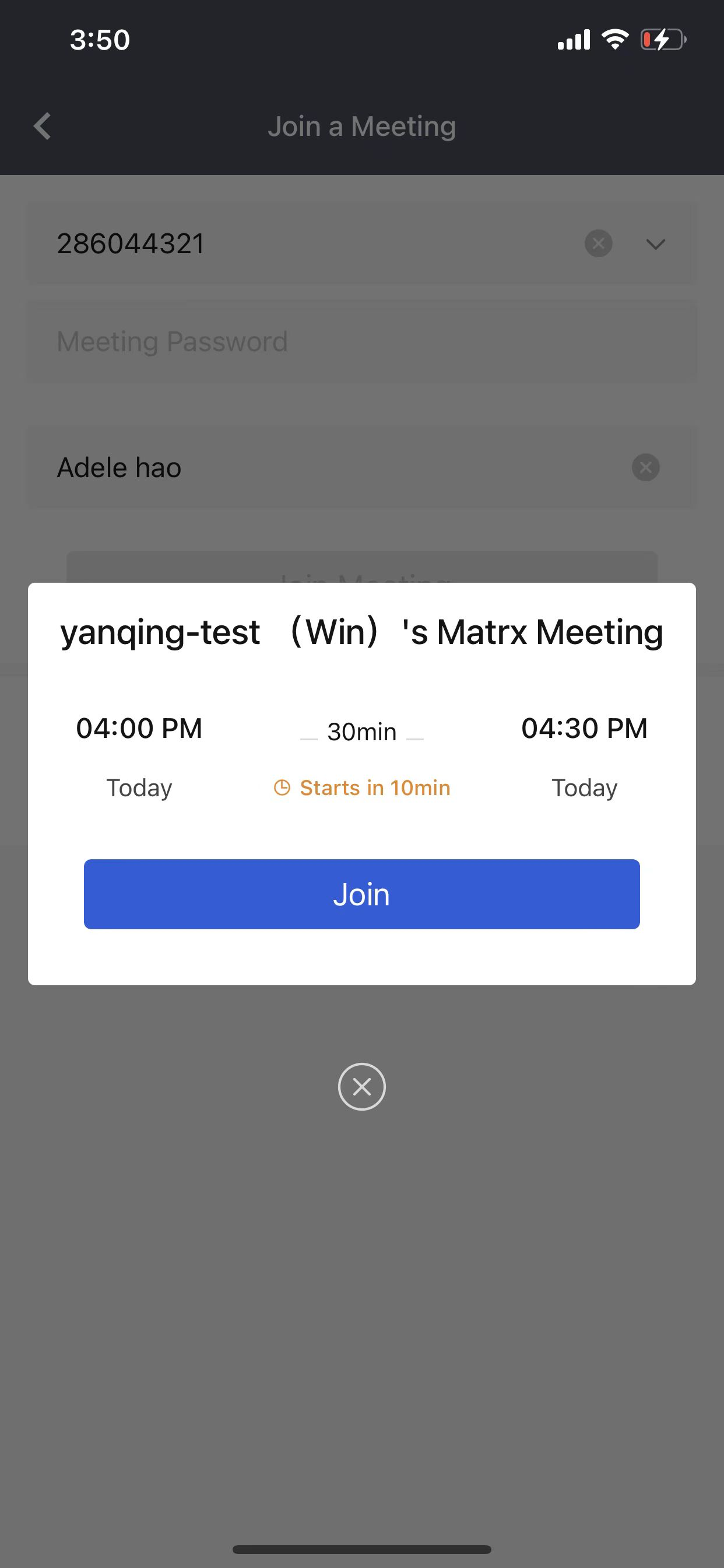
- Matrx has provided a shortcut for joining a meeting with the meeting ID and password. After copying the full meeting invitation text or at least the meeting ID and password together, click the Join Meeting button, the meeting info will be automatically recognized and the meeting card will pop out. Click the Join button and you'll enter the meeting.
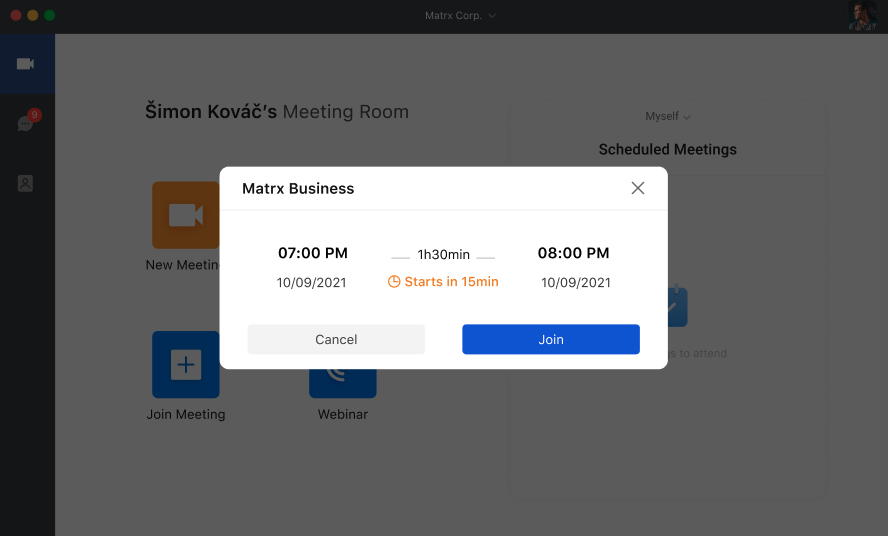
Join a Meeting by Clicking the Join or Answer Button
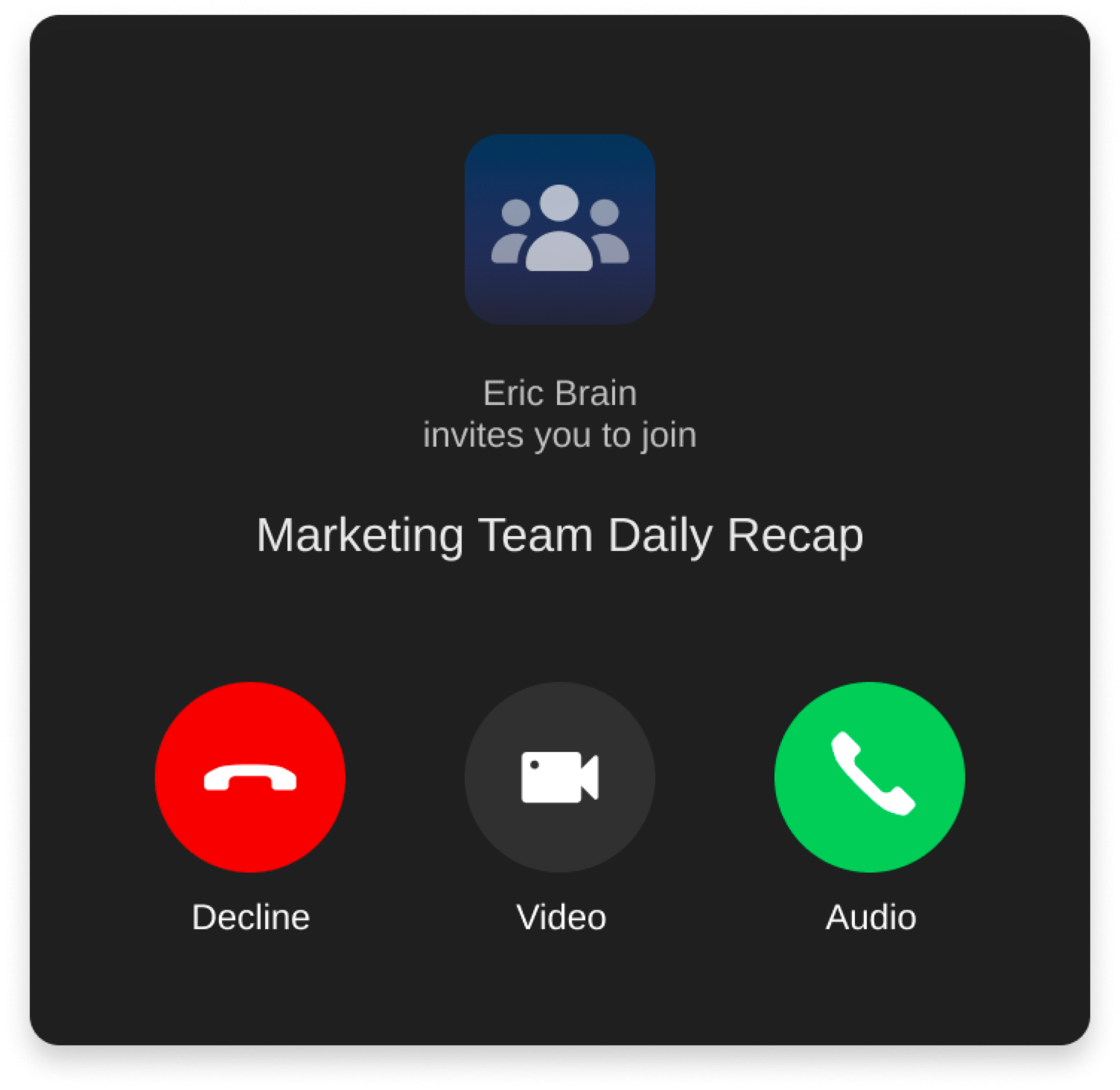
- When a scheduled meeting on your scheduled meeting list is due to start or you're directly called to join an ongoing meeting by the meeting host, you'll see a calling card pop out. By clicking the Answer button, you can enter the meeting right away.
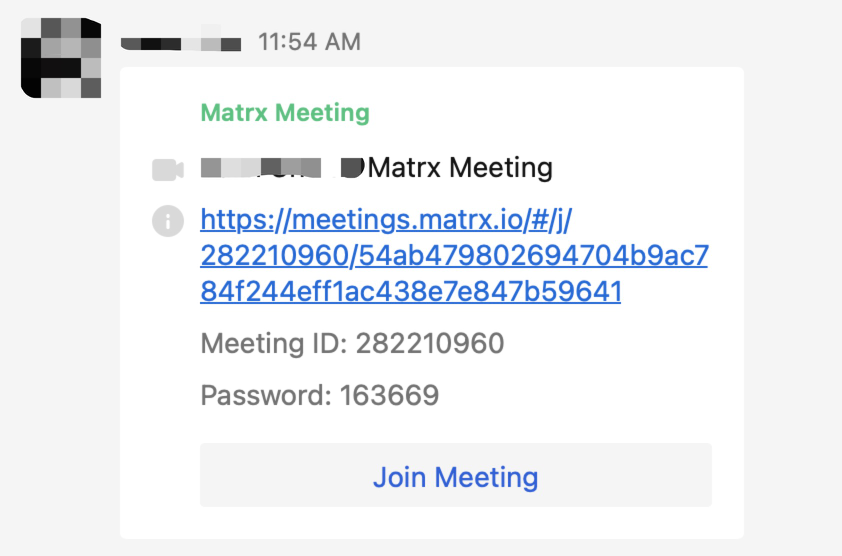
- When you're directly called to join an ongoing meeting by the meeting host, you'll also see a meeting card in the chat with the host. By clicking the Join Meeting button, you can enter the meeting right away.
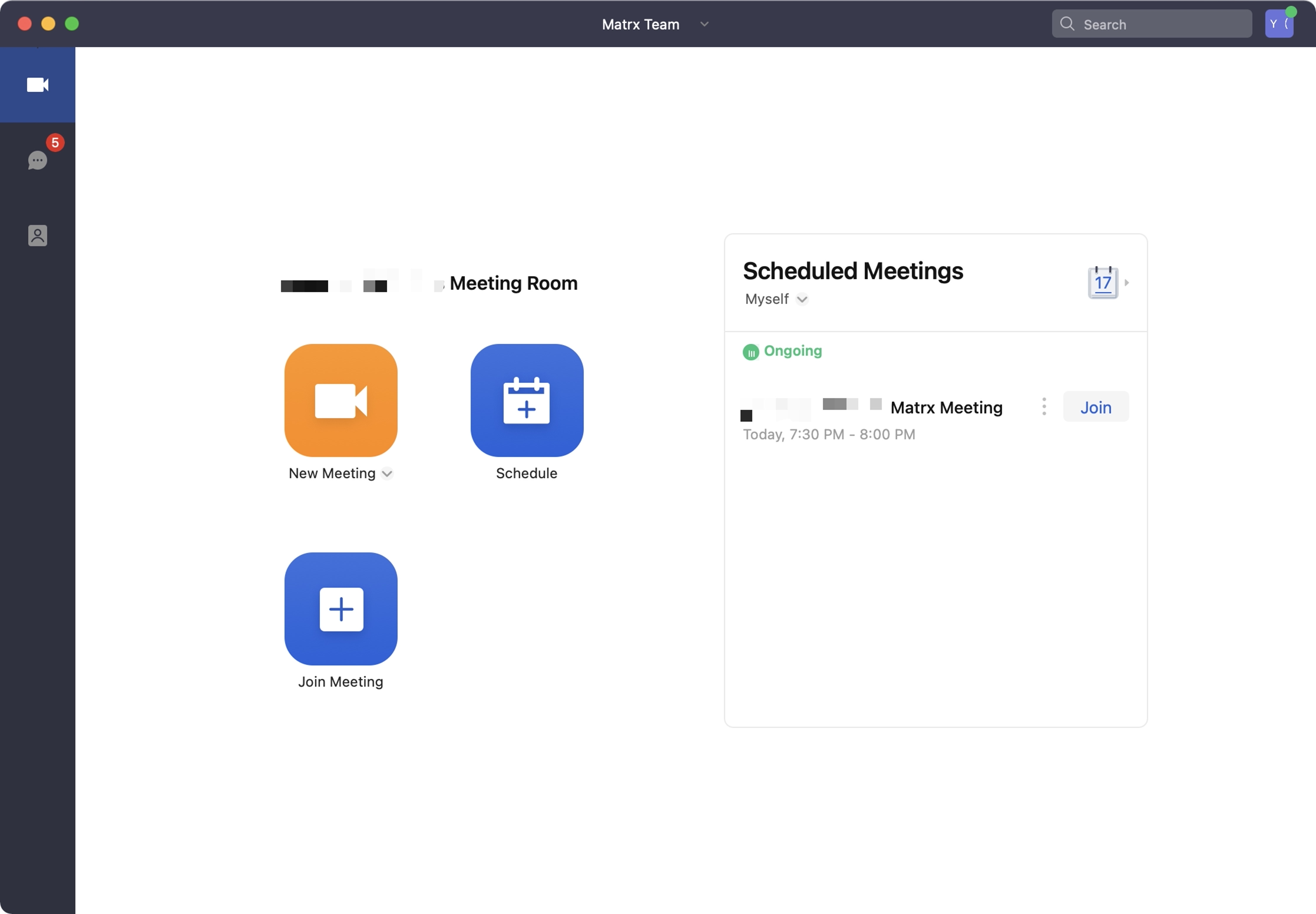
- You can also join a meeting directly by clicking the Join button in the Scheduled Meetings list.
Join a meeting from desktop (Android and iOS)
Join with the Meeting Link
1. When receiving a meeting link shared by other participants within Matrx, click the meeting link and you'll join the meeting automatically.
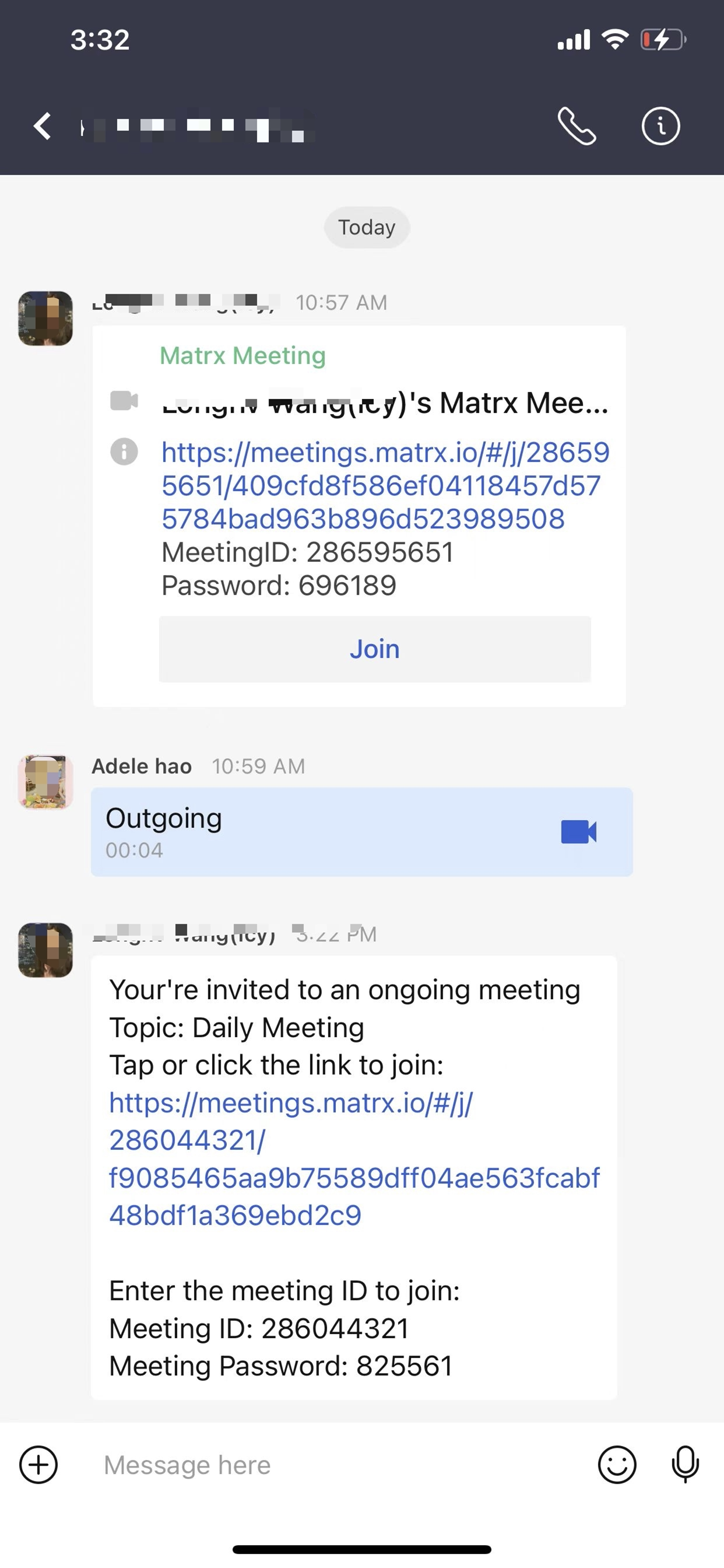
- When receiving a meeting link outside Matrx, click the meeting link and it will be opened through your browser. If you've installed Matrx, click the Join Meeting button and you'll join the meeting automatically. If you have logged in, you will directly join the meeting using your name. If you have not logged in, you will join anonymously.
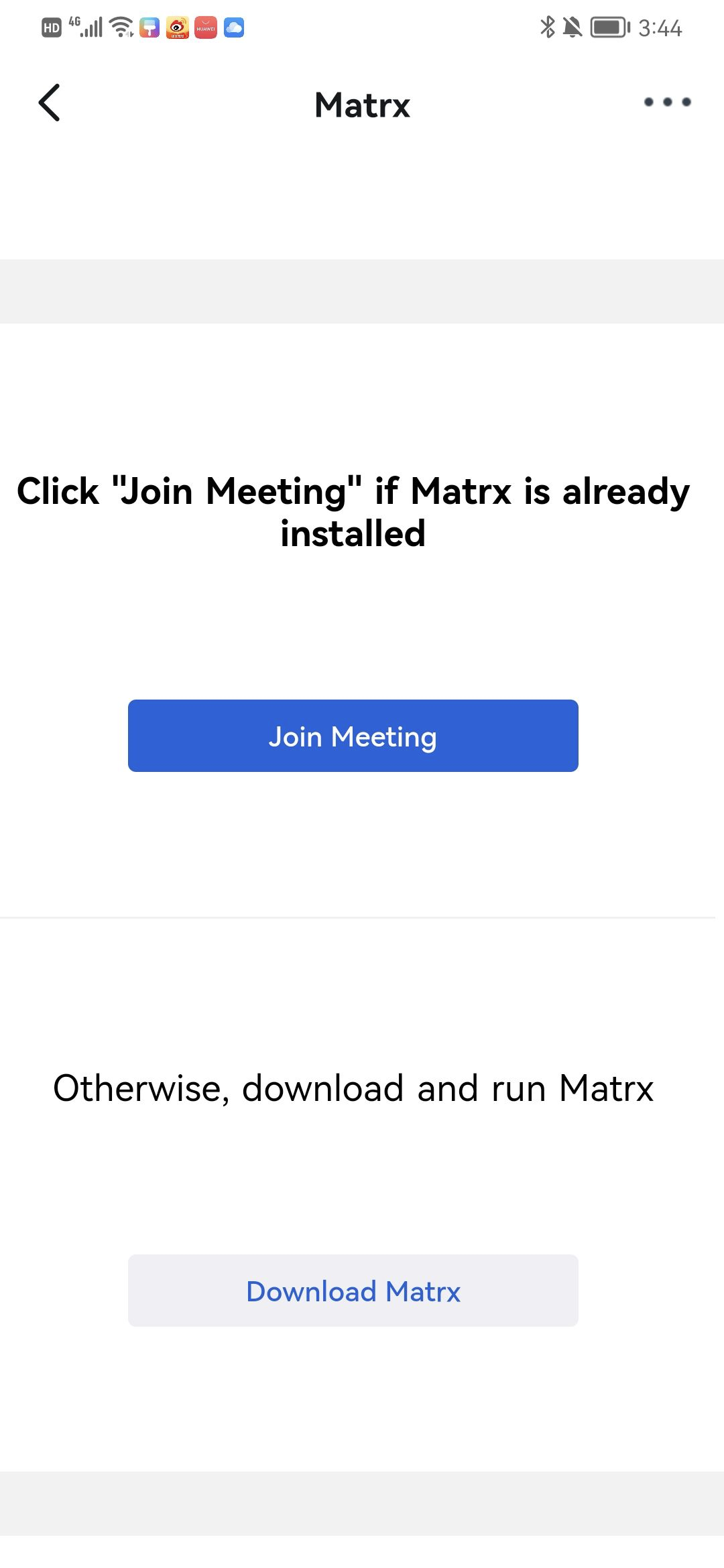
Join with the Meeting ID and Password
- If you have not logged in on Matrx or even don't have a Matrx account yet, you can also join a meeting directly with the meeting ID and password. By clicking the Join Meeting button, enter the meeting ID and password and your nickname, and you can join the meeting directly.
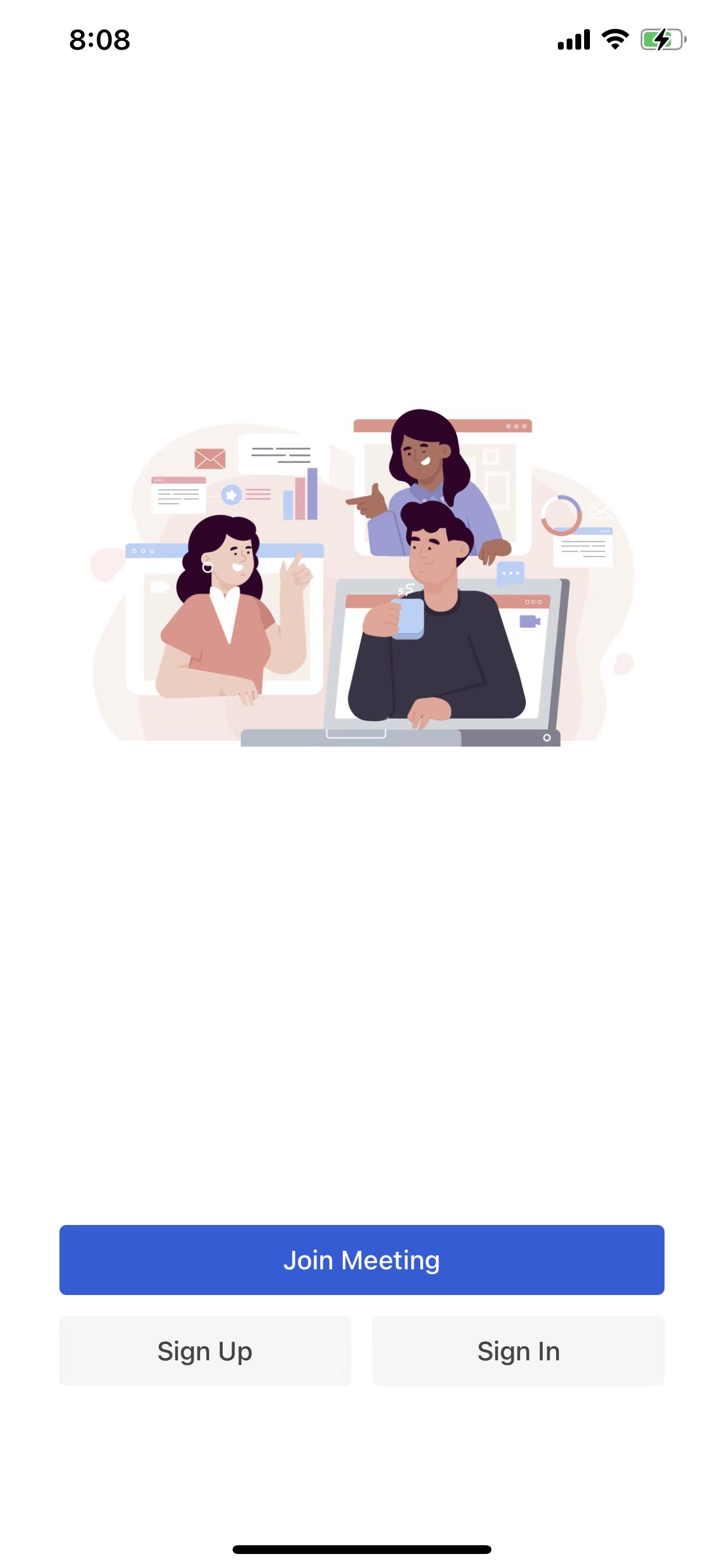
- If you have logged in on Matrx and only the meeting ID and password are shared with you, you can also click on the Join Meeting button, enter the meeting ID and password, change the audio and video settings, and click the Join Meeting button.
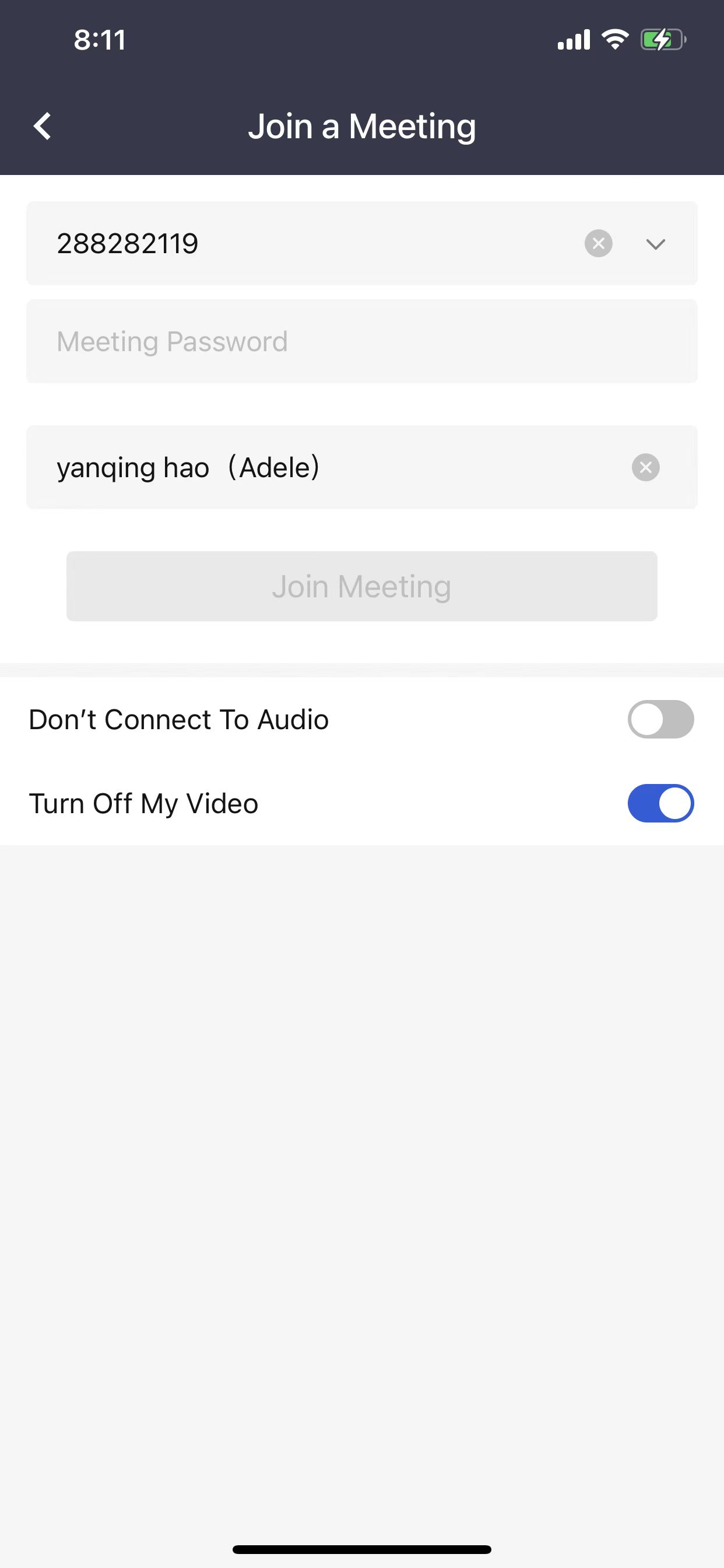
- Matrx has provided a shortcut for joining a meeting with the meeting ID and password. After copying the full meeting invitation text or at least the meeting ID and password together, click the Join Meeting button, the meeting info will be automatically recognized and the meeting card will pop out. Click the Join button and you'll enter the meeting.
Join a Meeting by Clicking the Join or Answer Button
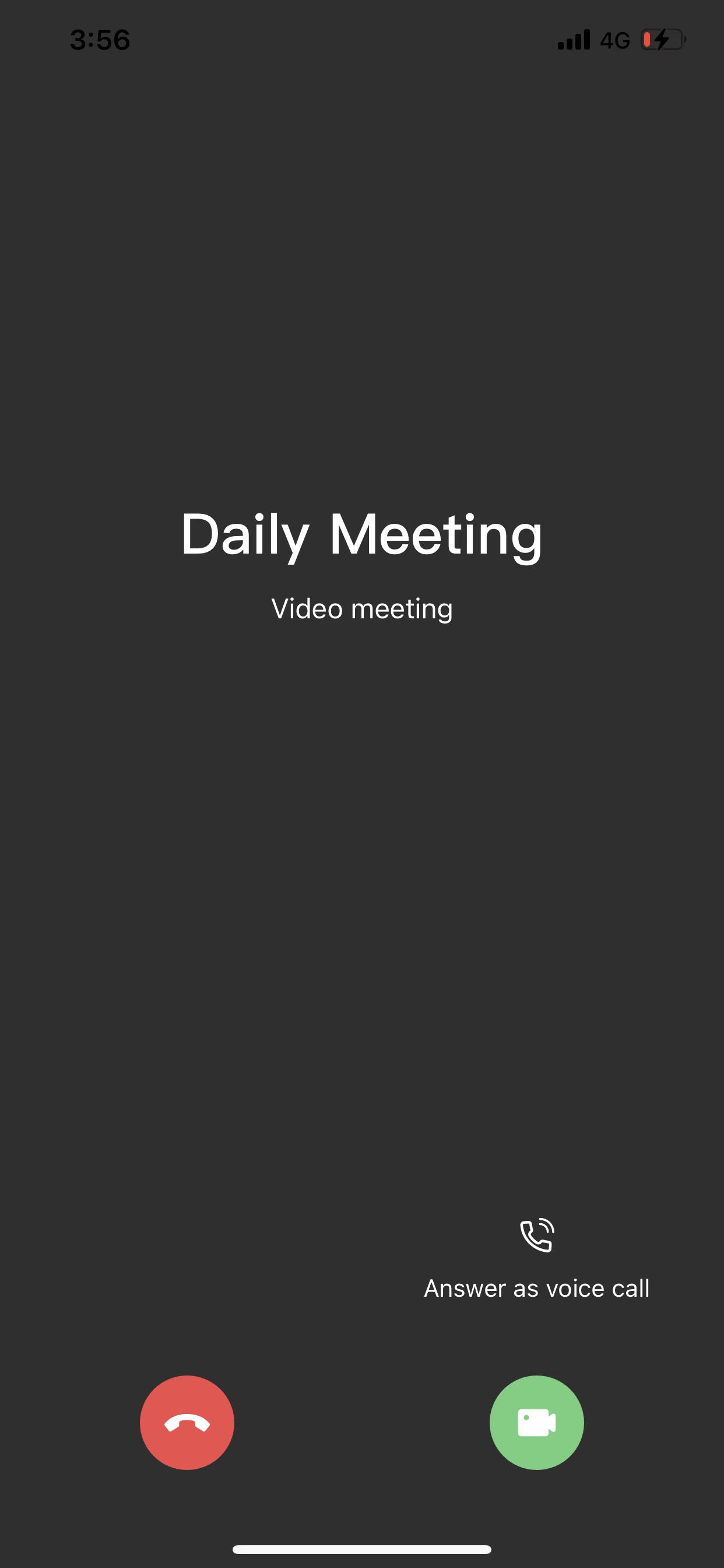
- When a scheduled meeting on your scheduled meeting list is due to start or you're directly called to join an ongoing meeting by the meeting host, you'll receive a calling. By clicking the Answer as voice call button or the video icon, you can enter the meeting right away.
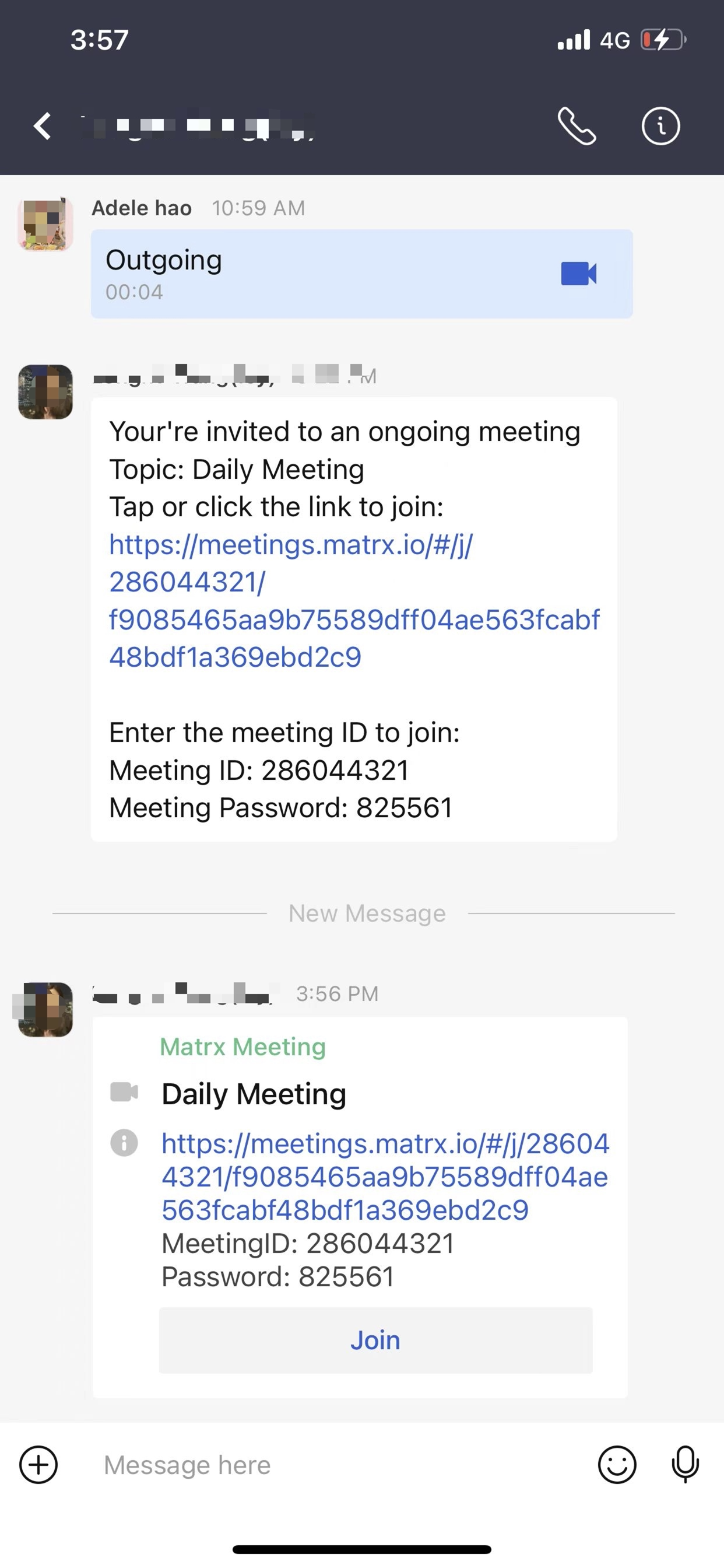
- When you're directly called to join an ongoing meeting by the meeting host, you'll also see a meeting card in the chat with the host. By clicking the Join button, you can enter the meeting right away.
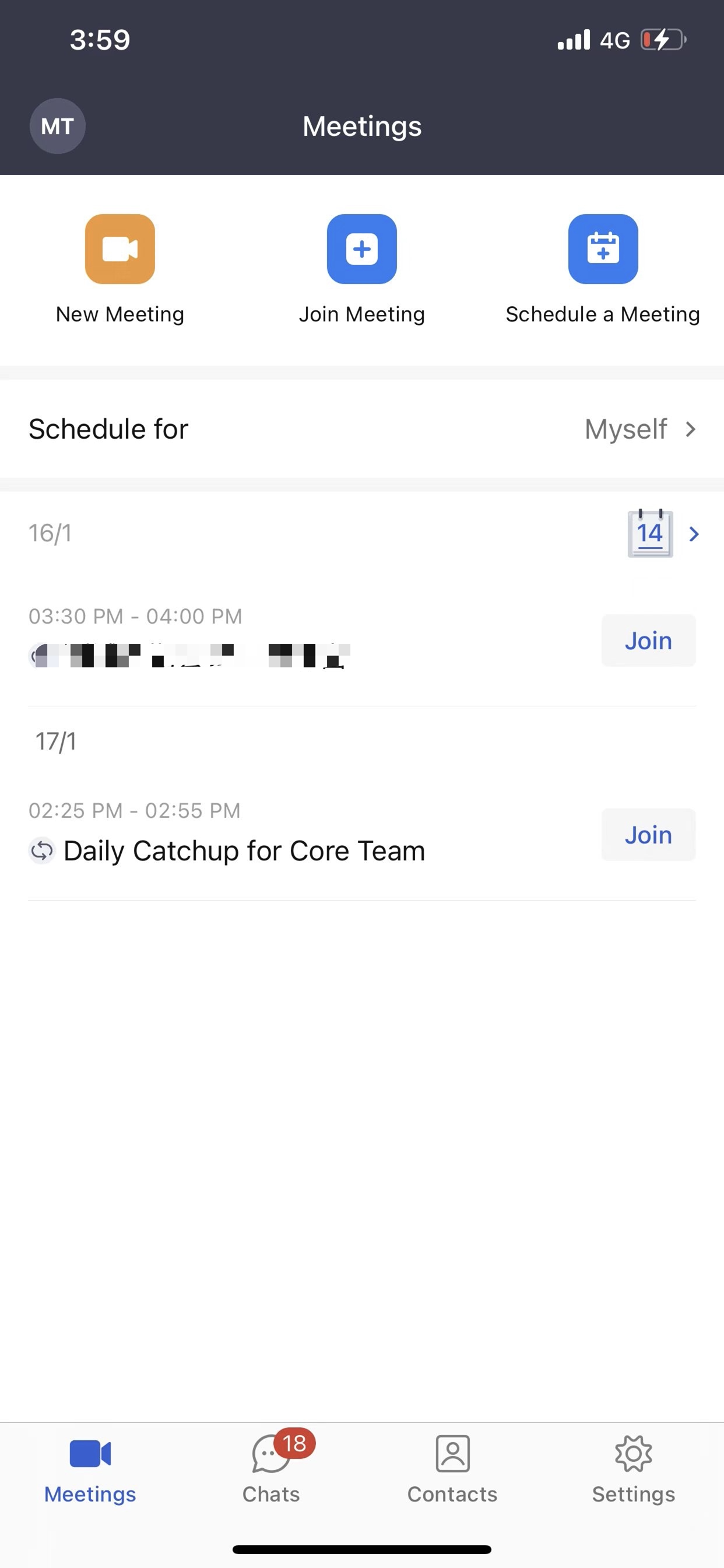
- You can also join a meeting directly by clicking the Join button in the Scheduled Meetings list.
Join a meeting from the web browser
Matrx provides a web client that allows end-users to join Matrx meetings from their web browser without downloading the Matrx application. Like from the clients, you can join meetings from the web browser without sign-in. But if the meeting requires authentication, you’ll have to sign in to your Matrx account first and then join the meeting.
Notes: Compared with desktop clients, the web client has limited features and functions. Meeting recording, annotation on the shared content, and Polls are not available on the web client.
Prerequisites: The web client has limited features and functions best on Google Chrome, Mozilla Firefox, and Chromium Edge.
Join from the Web Browser with the Meeting Link
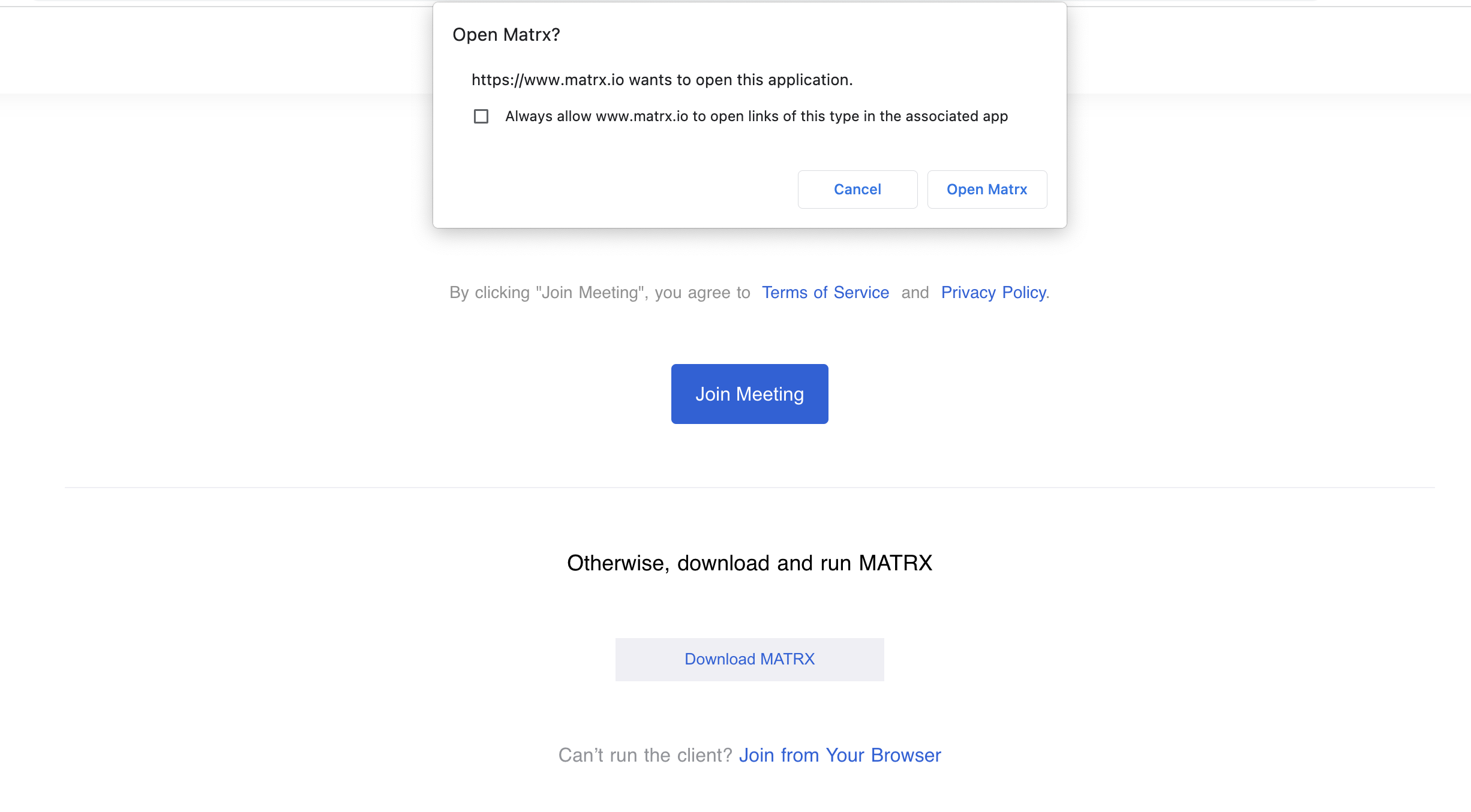
- Open the meeting link you get with your browser, click Cancel when you see the pop-out window, and then click Join from Your Browser.
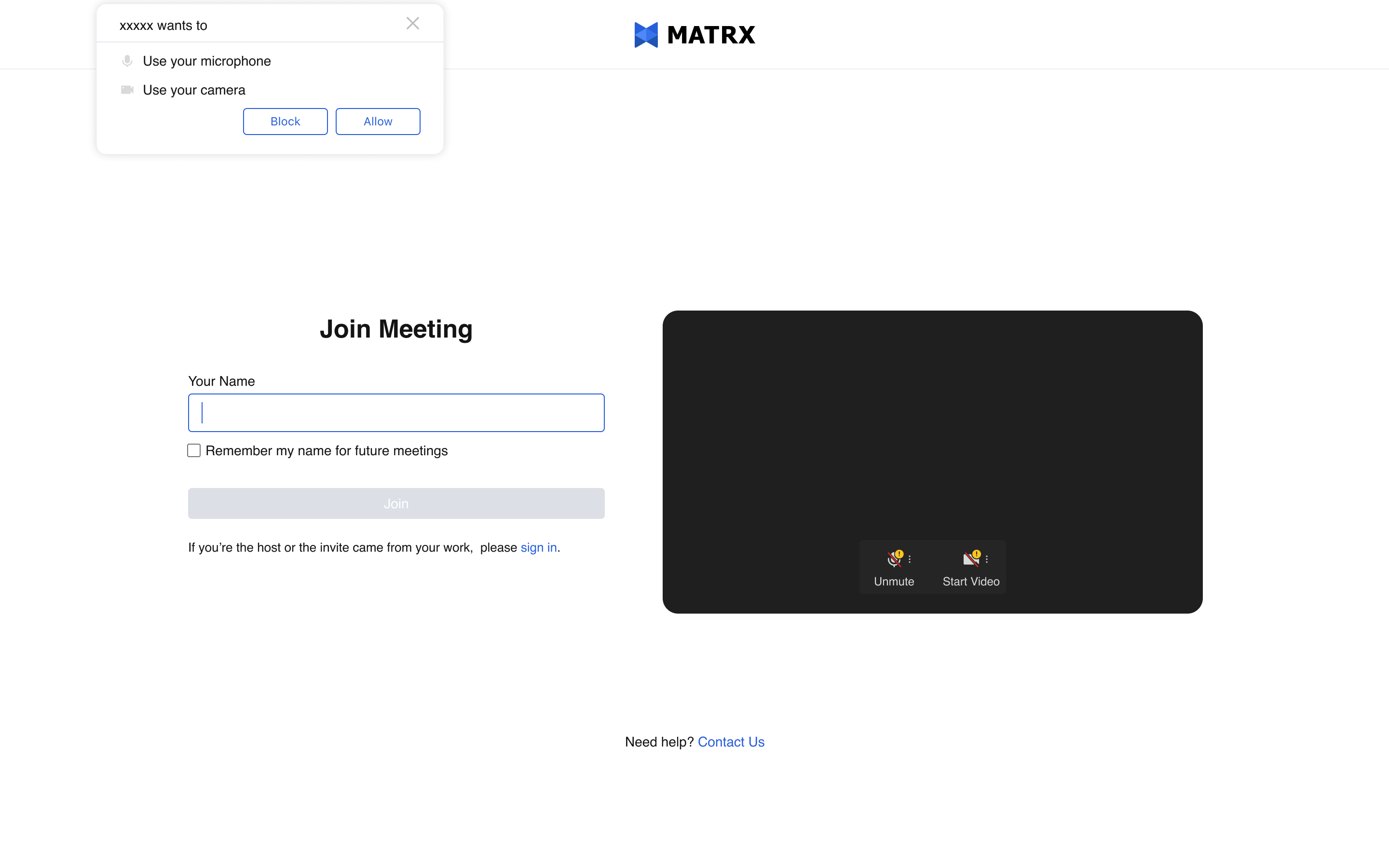
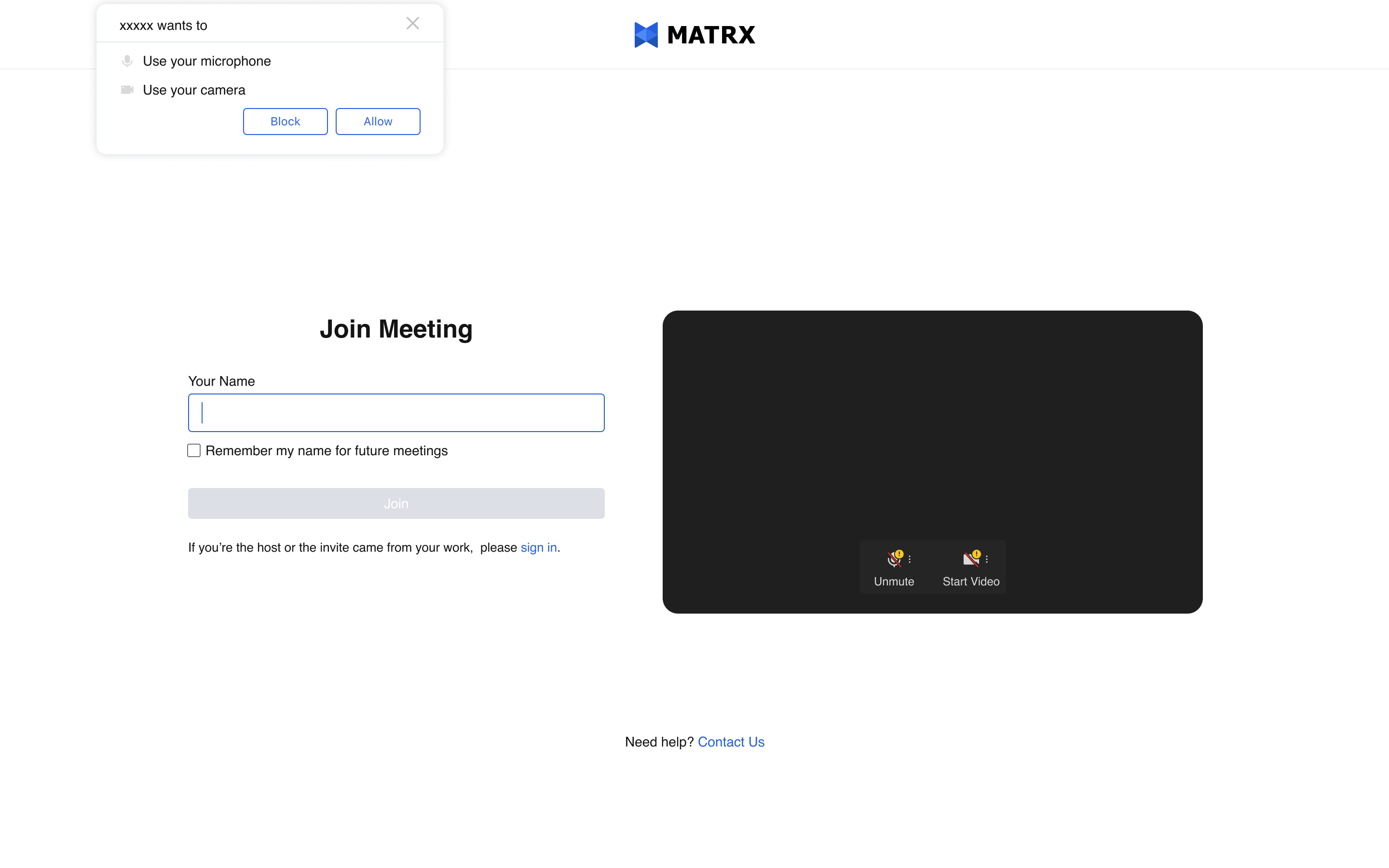
- Allow Matrx to use your microphone and camera so that you can let other participants hear and see you in the meeting and you can choose to mute or unmute and stop or start video before joining the meeting. If you want to join without sign-in, then enter your name and click Join. If you want to join as a host or the meeting is only open to invited users or users in your organization only, then please sign in first and then join the meeting.
Join from the Web Browser with the Meeting ID and Password
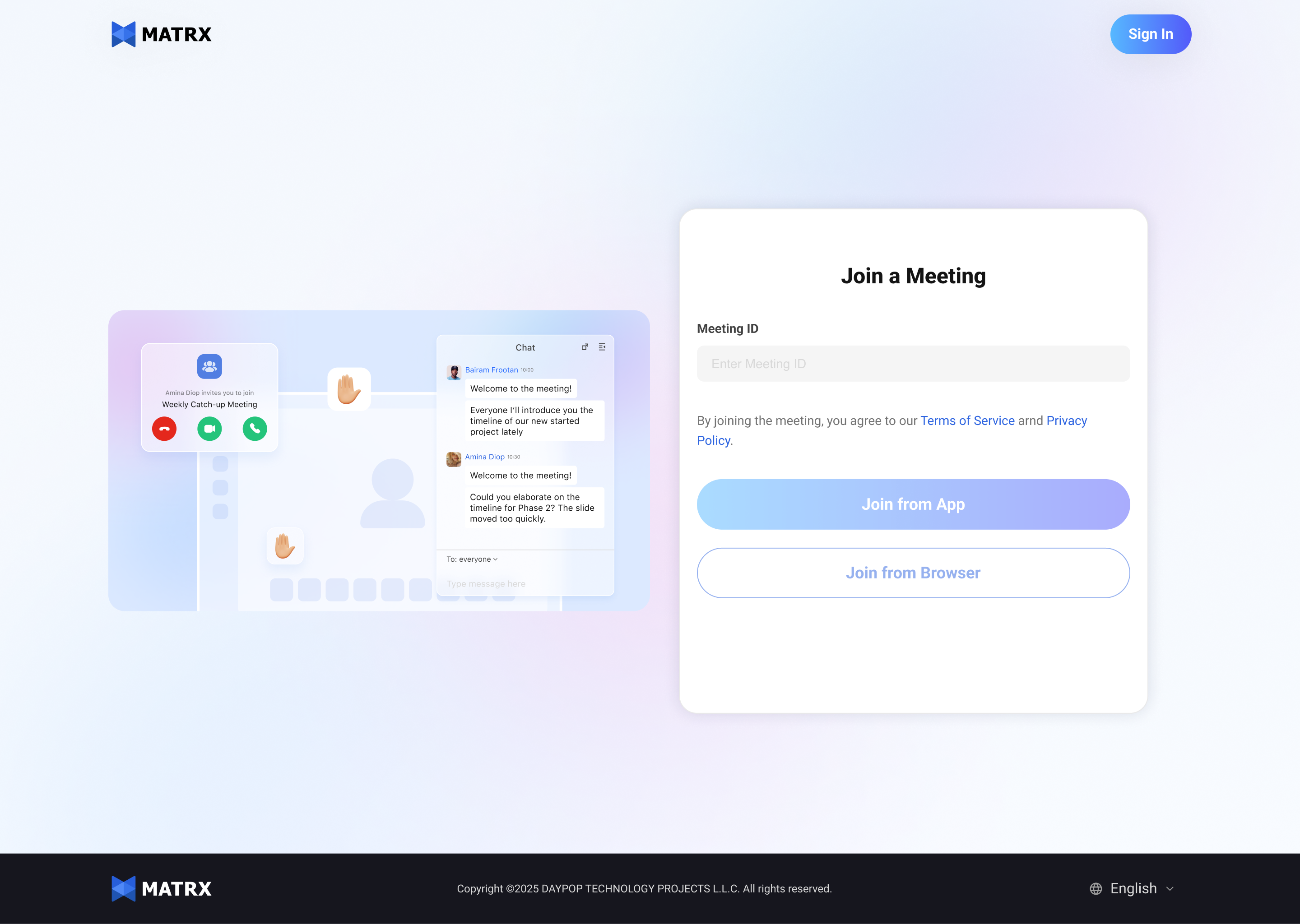
- Open the link www.matrx.io/meetings with your browser. Enter the meeting ID, password, and your name, set your microphone and camera to be on or off, and click Join from Browser. If you opened the link with the browser on your IdeaHub, click Join from IdeaHub Browser.
- If you want to join as a host or the meeting is only open to invited users or users in your organization only, we still recommend you to sign in first and then join the meeting.